eSIM Compatible Devices
The app includes a section detailing the requirements for eSIM compatibility. You can also check your device settings under "Mobile Network" or "SIM Management" to see if eSIM is listed as an option.
How do I install an eSIM on my device? (Direct Installation)
Ensure that your device is eSIM-compatible before beginning the installation process.
- Go to "My eSIMs"
- Select the eSIM you want to install
- Tap "View Instructions"
- Choose "Direct Installation"
- Tap "Install eSIM"
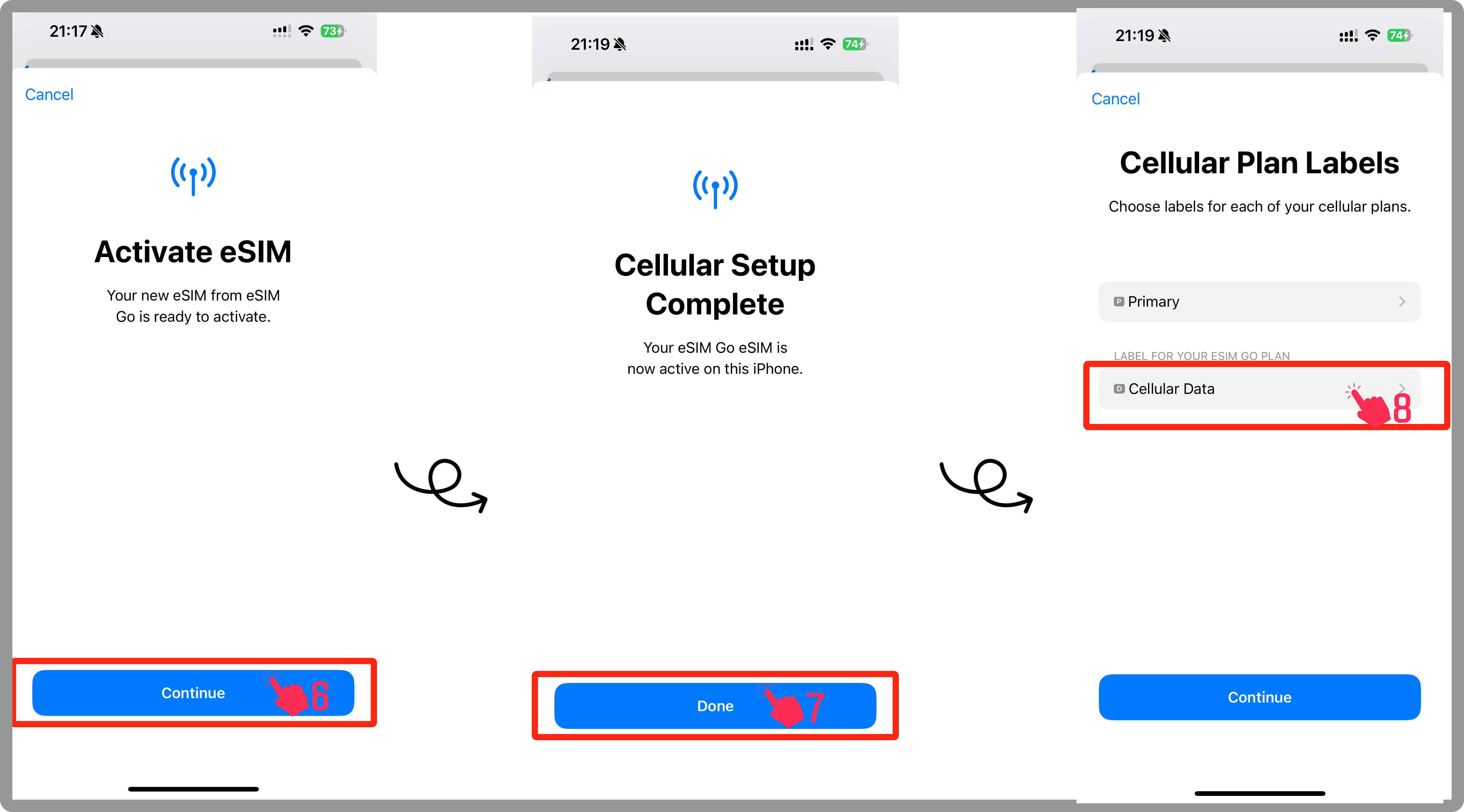
- Follow the on-screen steps by tapping Next and Continue when prompted
- Wait a few minutes while your eSIM activates
- Once the installation is complete, tap Done
📱 eSIM Installation Screenshot - Step 1
install_auto_2-1024x568.webp
(Image will appear when printed from the original webpage)
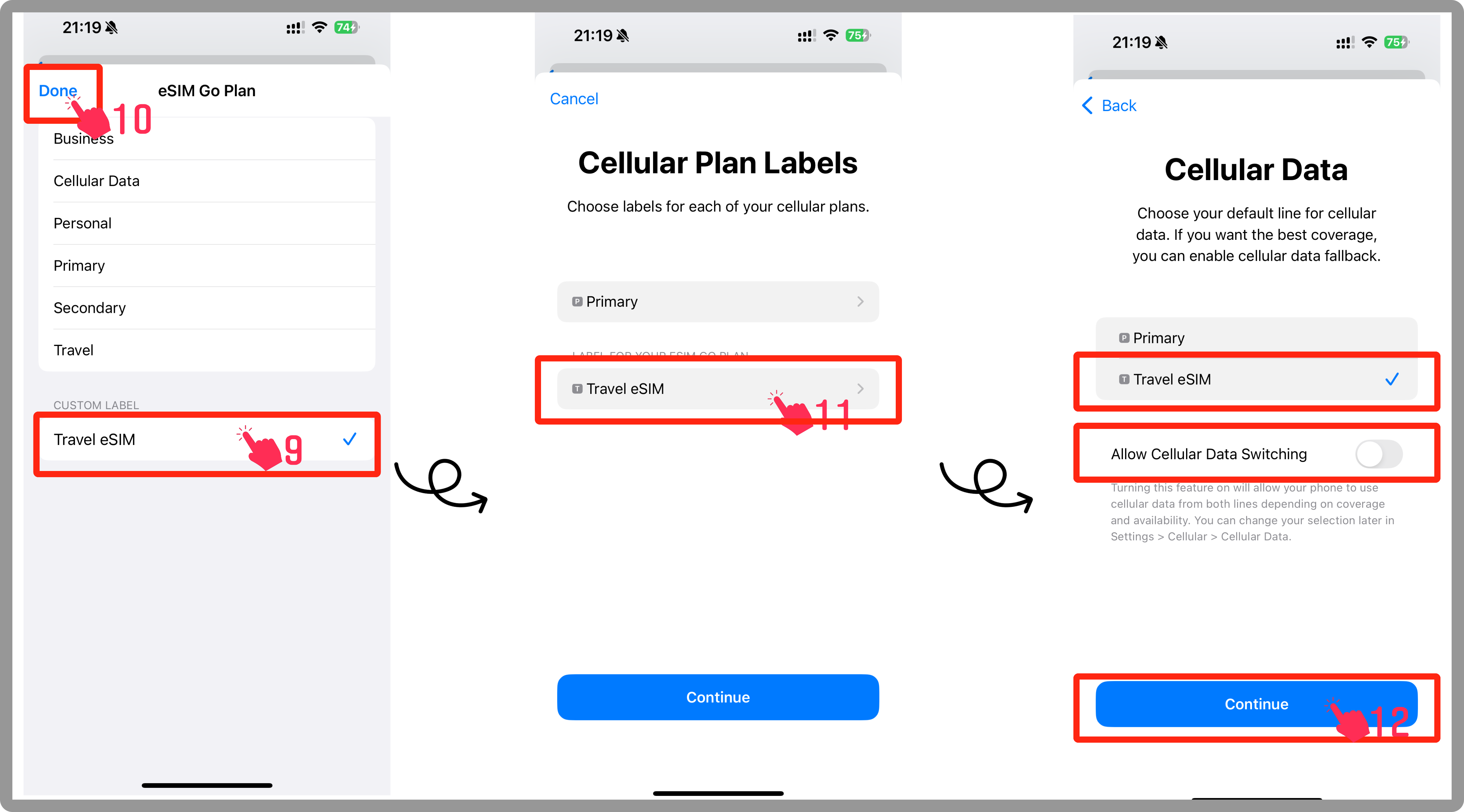
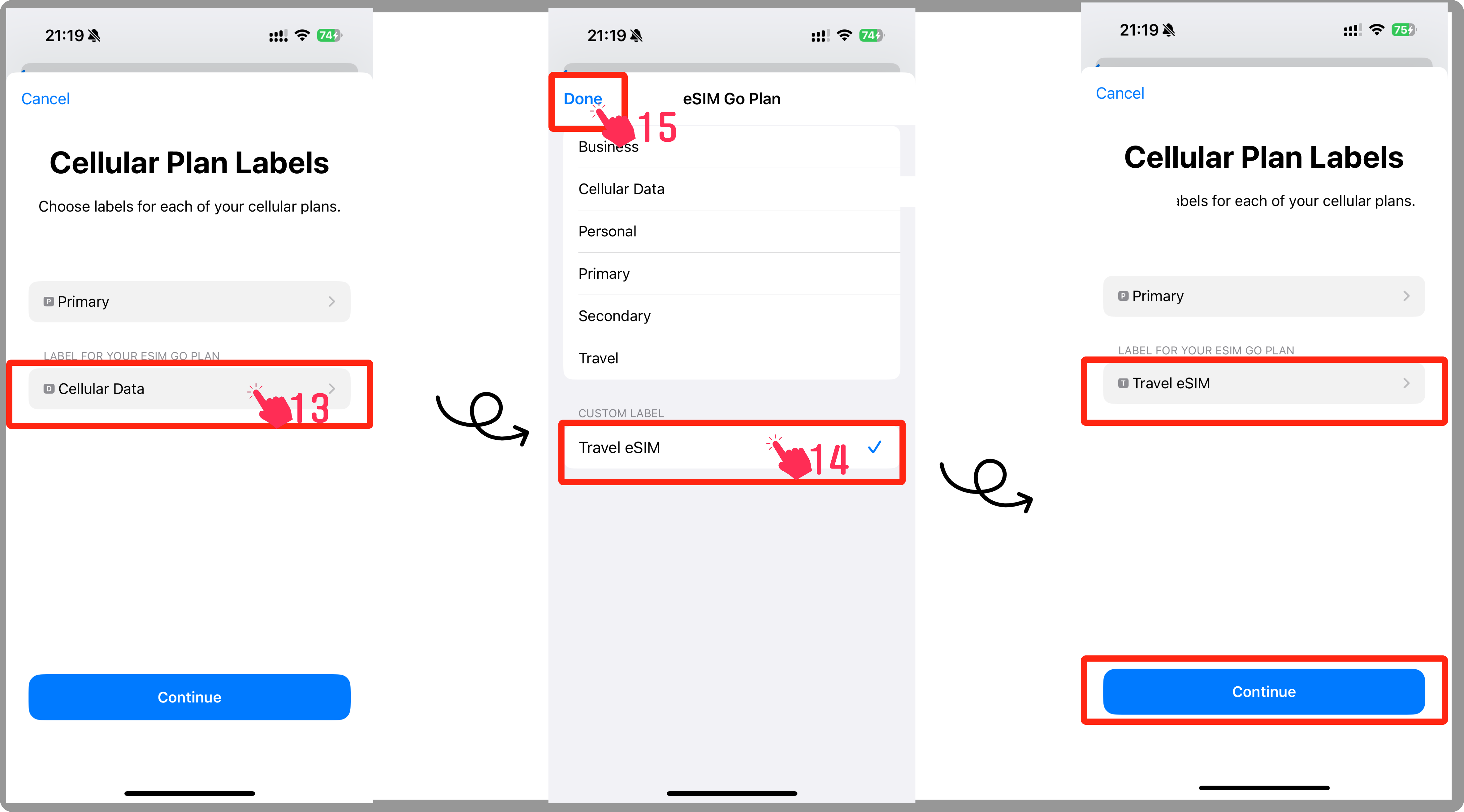
- Select Secondary (or another preferred label)
- Enter Travel eSIM or a custom name
- Tap Done
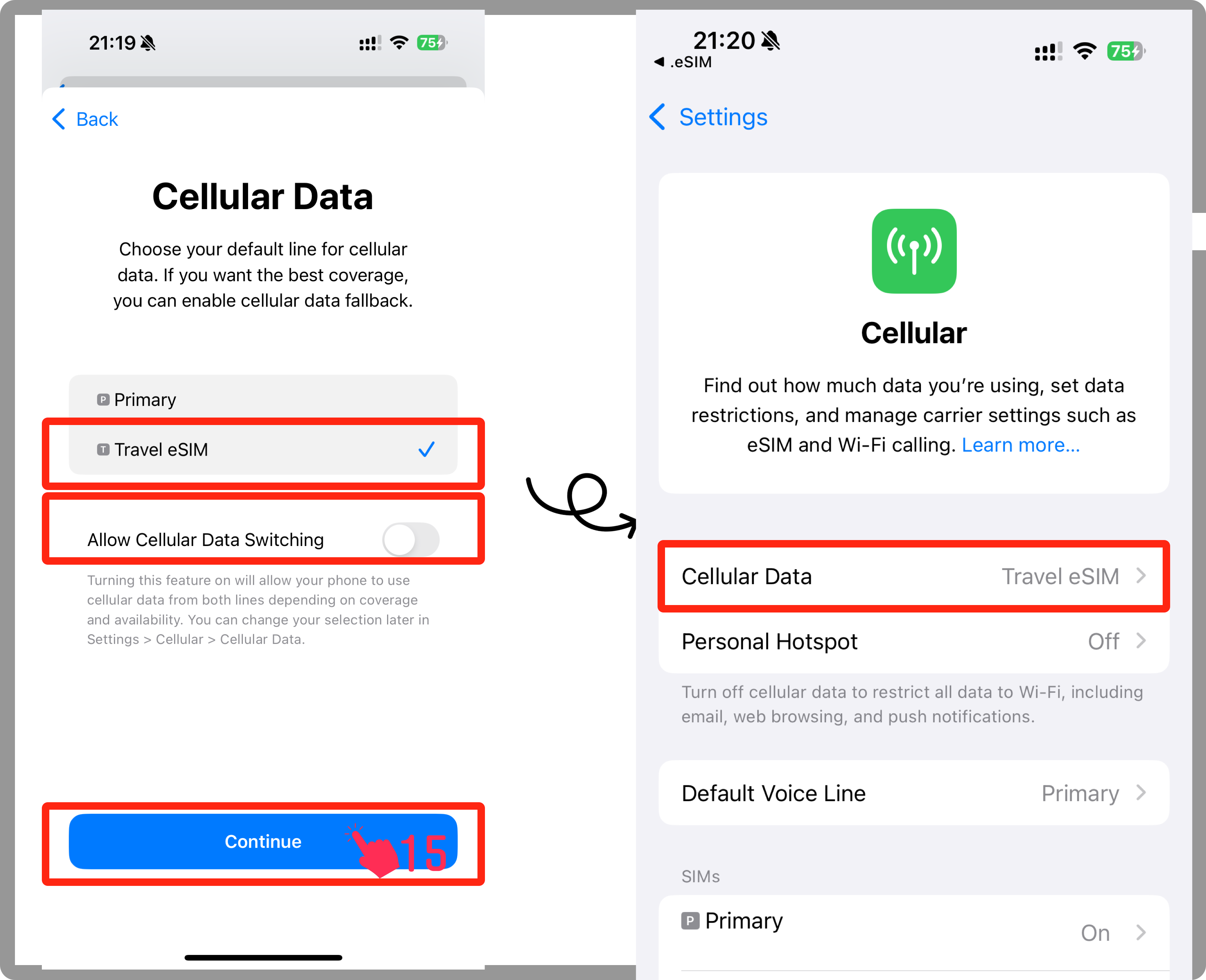
- Set your eSIM for Cellular/Mobile Data
- Turn off "Allow Cellular Data Switching" to prevent unexpected charges
- Tap Continue to confirm
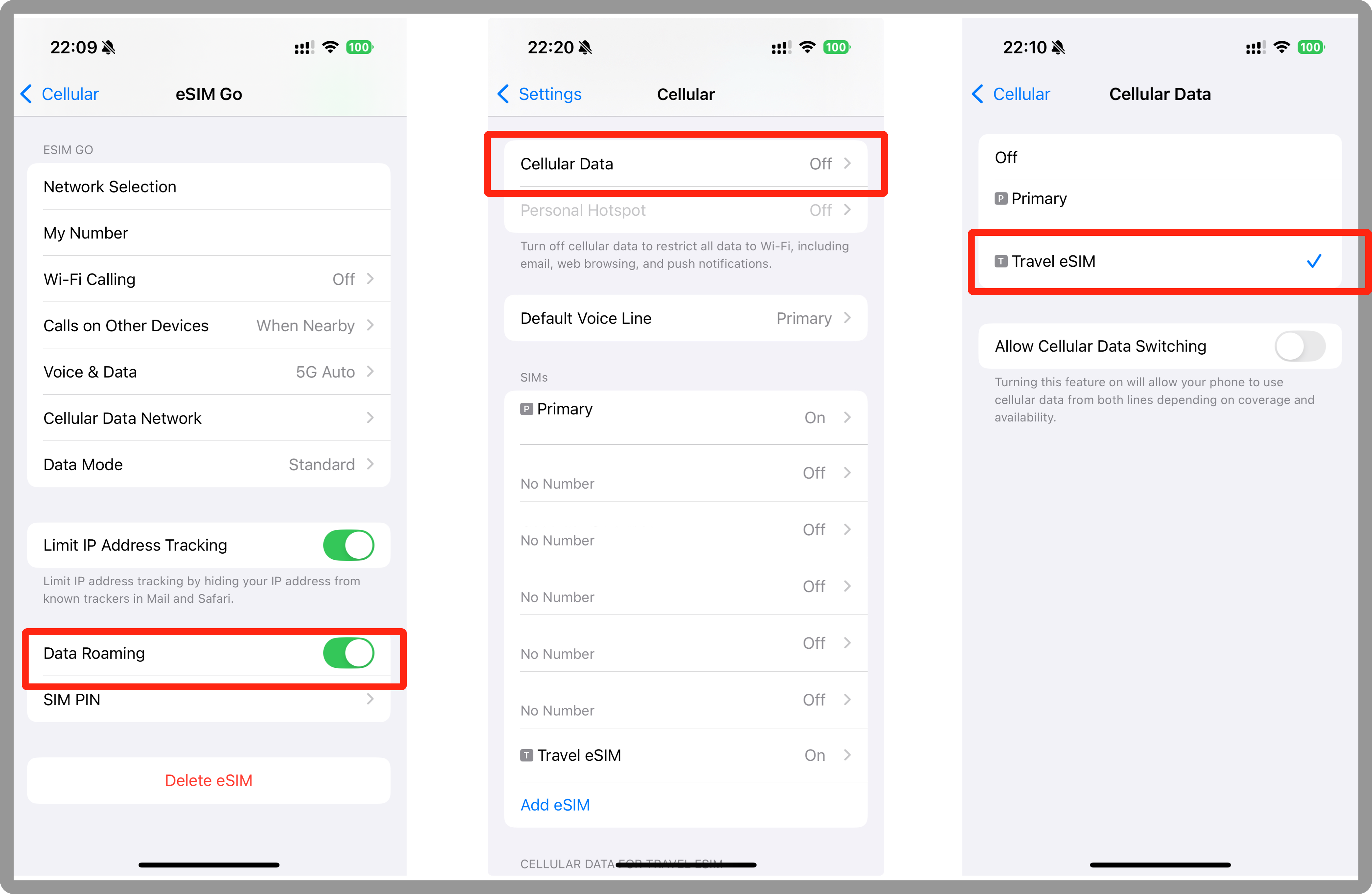
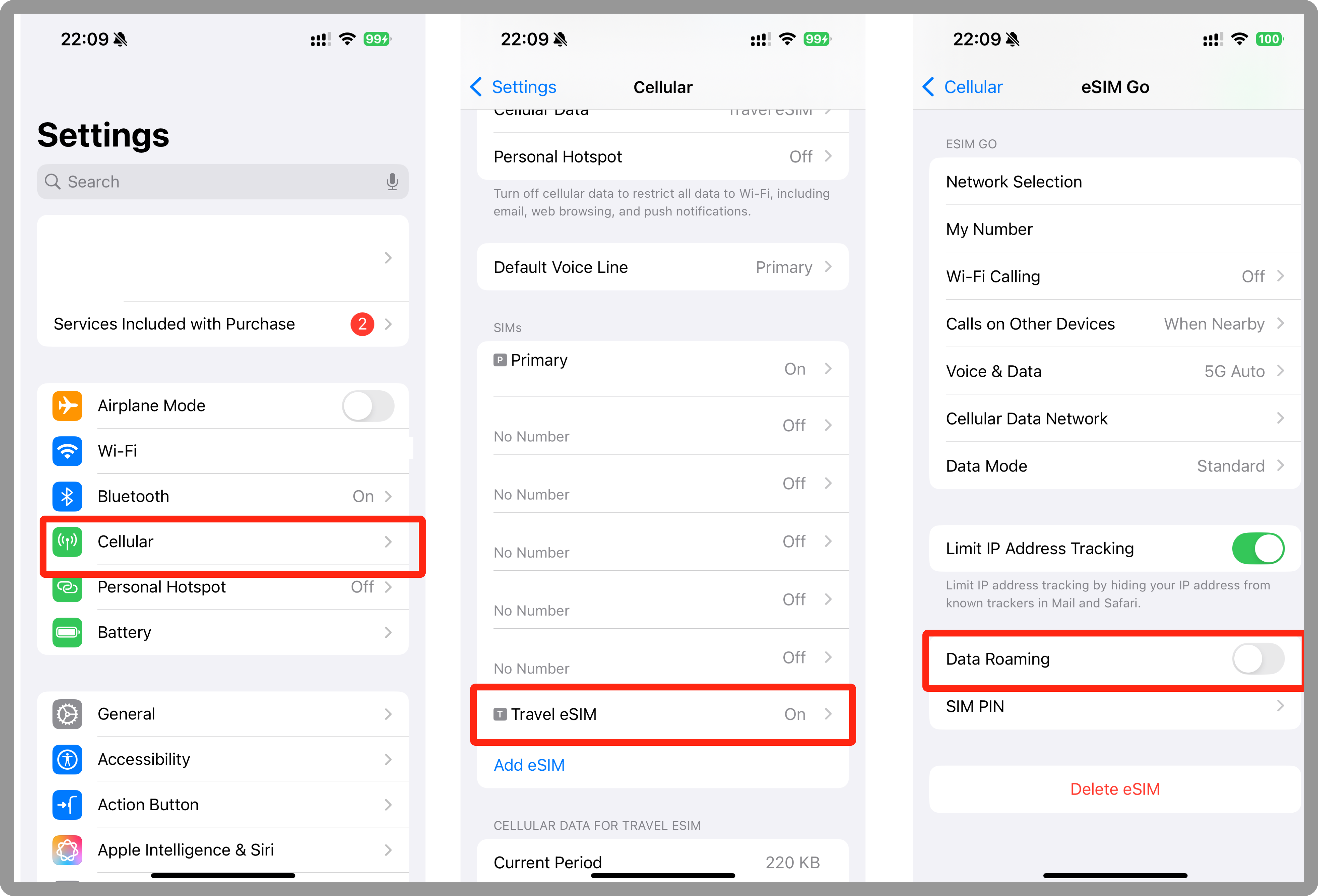
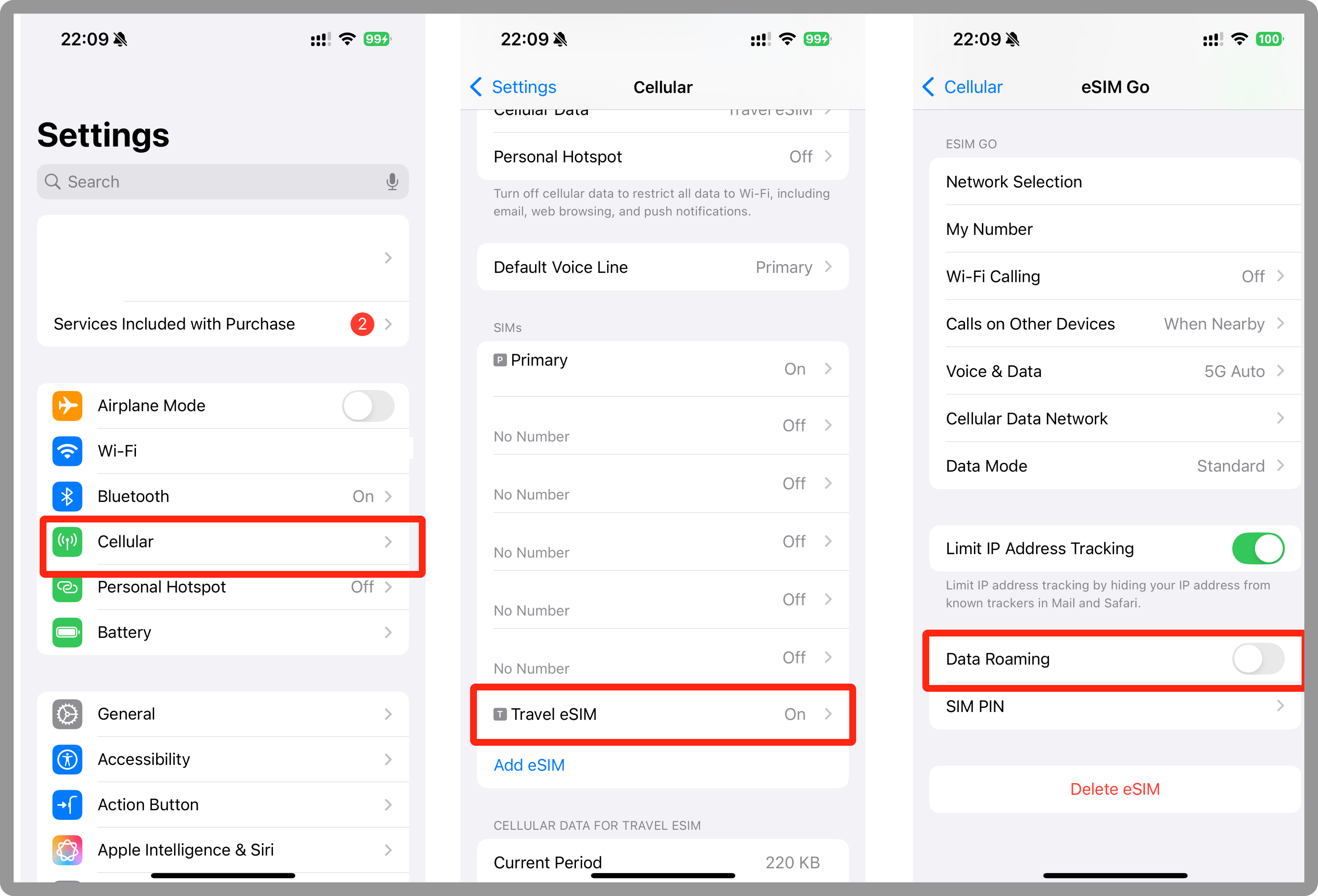
- Go to Settings
- Tap Cellular or Mobile Data
- Select your newly installed eSIM
- Ensure Turn On This Line is enabled
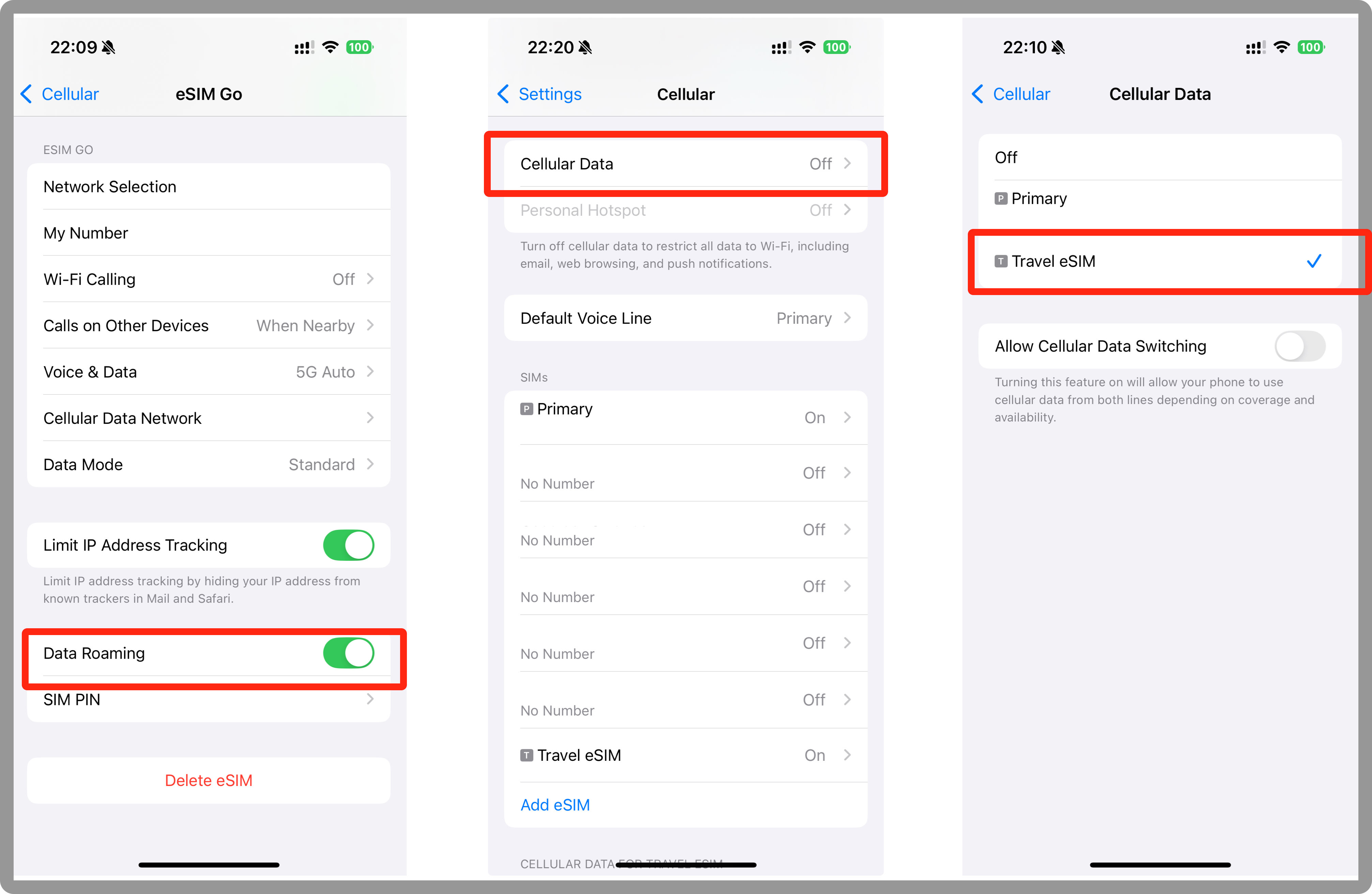
- If needed, enable Data Roaming based on your plan's requirements (check the eSIM instructions in the app)
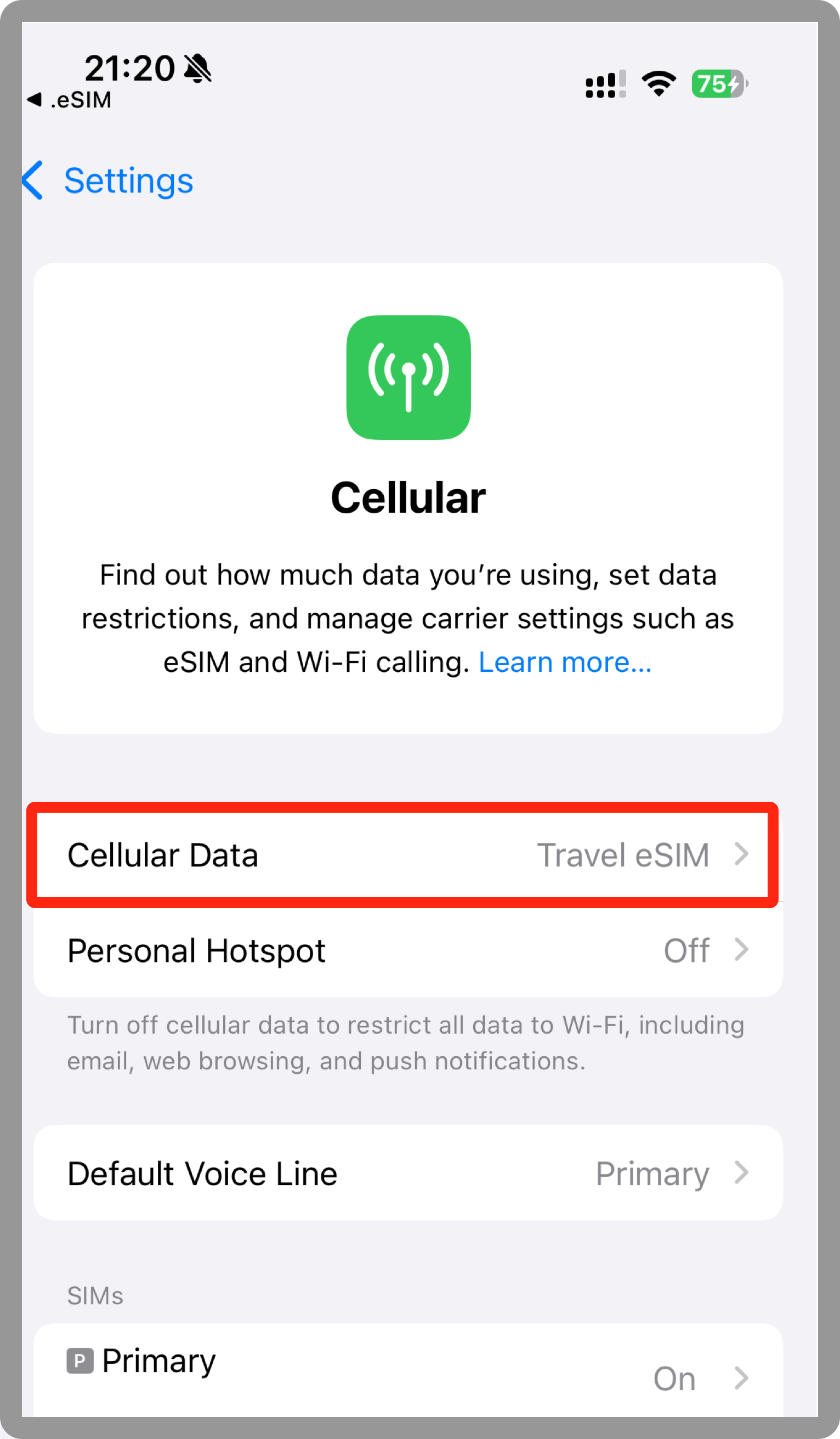
- Go to Cellular/Mobile Data Settings
- Tap Cellular Data and select your eSIM
How do I install an eSIM using a QR code?
Ensure that your device is eSIM-compatible before beginning the installation process.
Follow the standard QR code installation process in your device settings under Cellular/Mobile Data → Add eSIM → Use QR Code.
How do I install an eSIM manually?
Ensure that your device is eSIM-compatible before beginning the installation process.
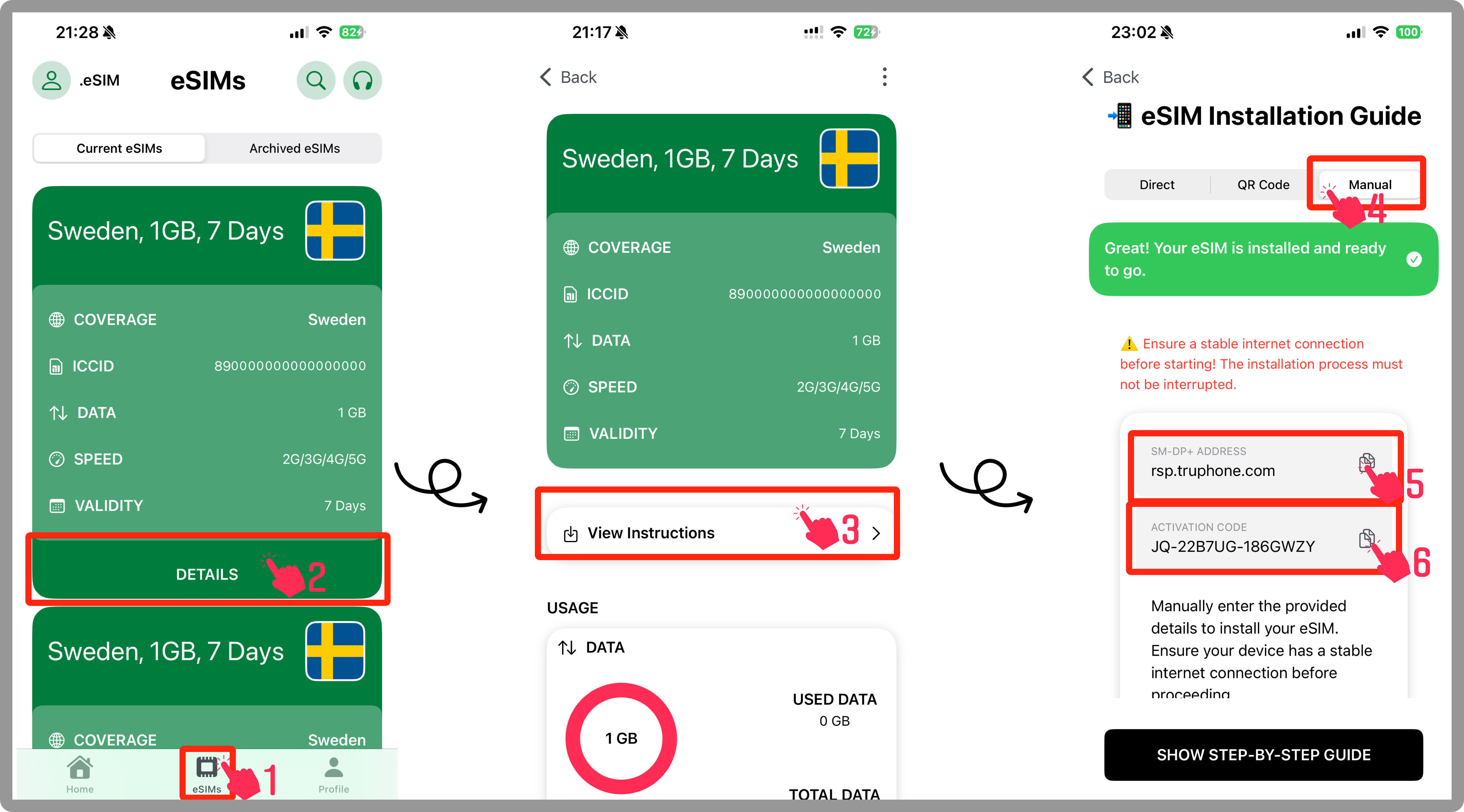
- Go to My eSIMs
- Select the eSIM you wish to install
- Tap View Instructions
- Choose Manual
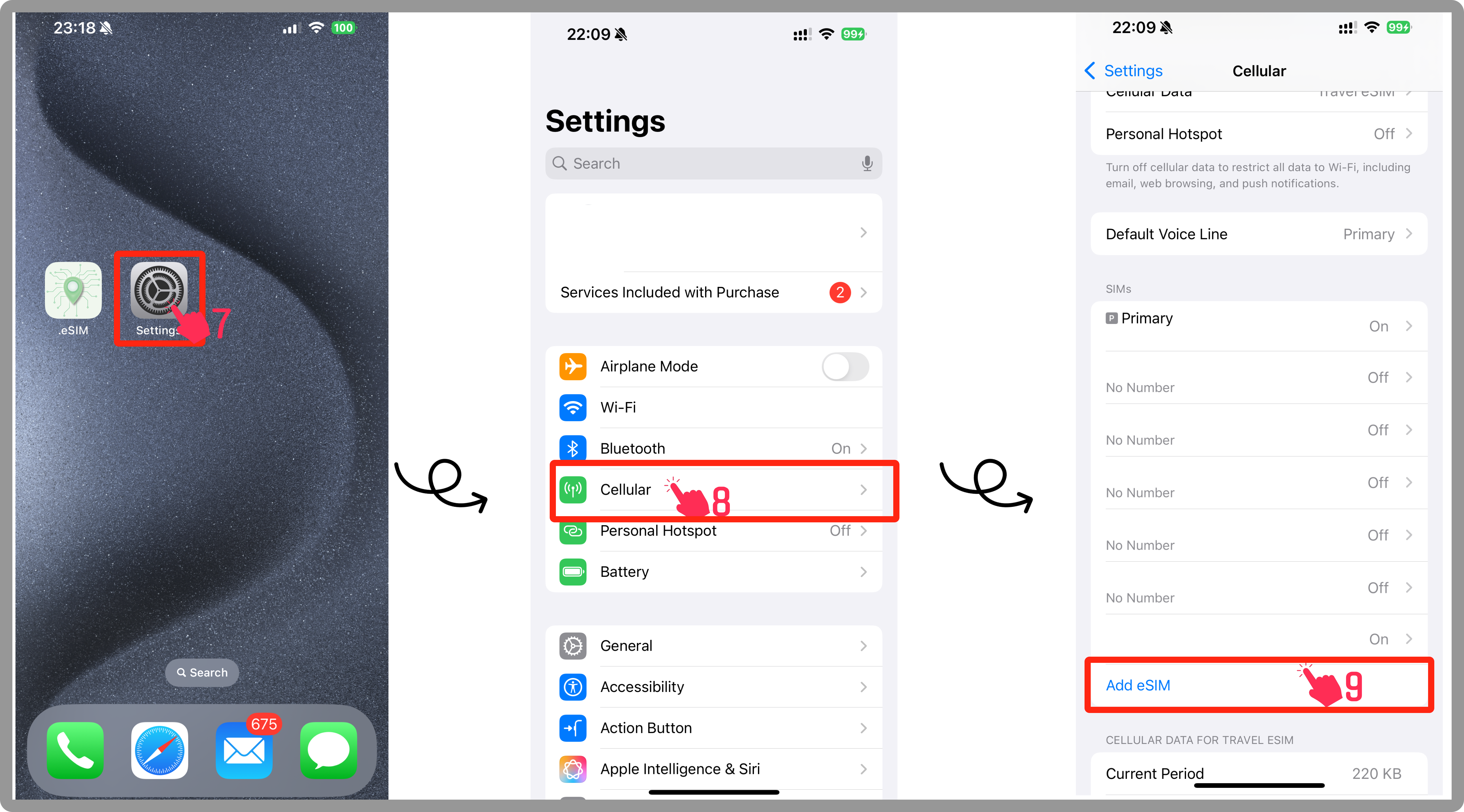
- Exit the app and open the Settings app
- Tap Cellular or Mobile Data
- Tap Add eSIM
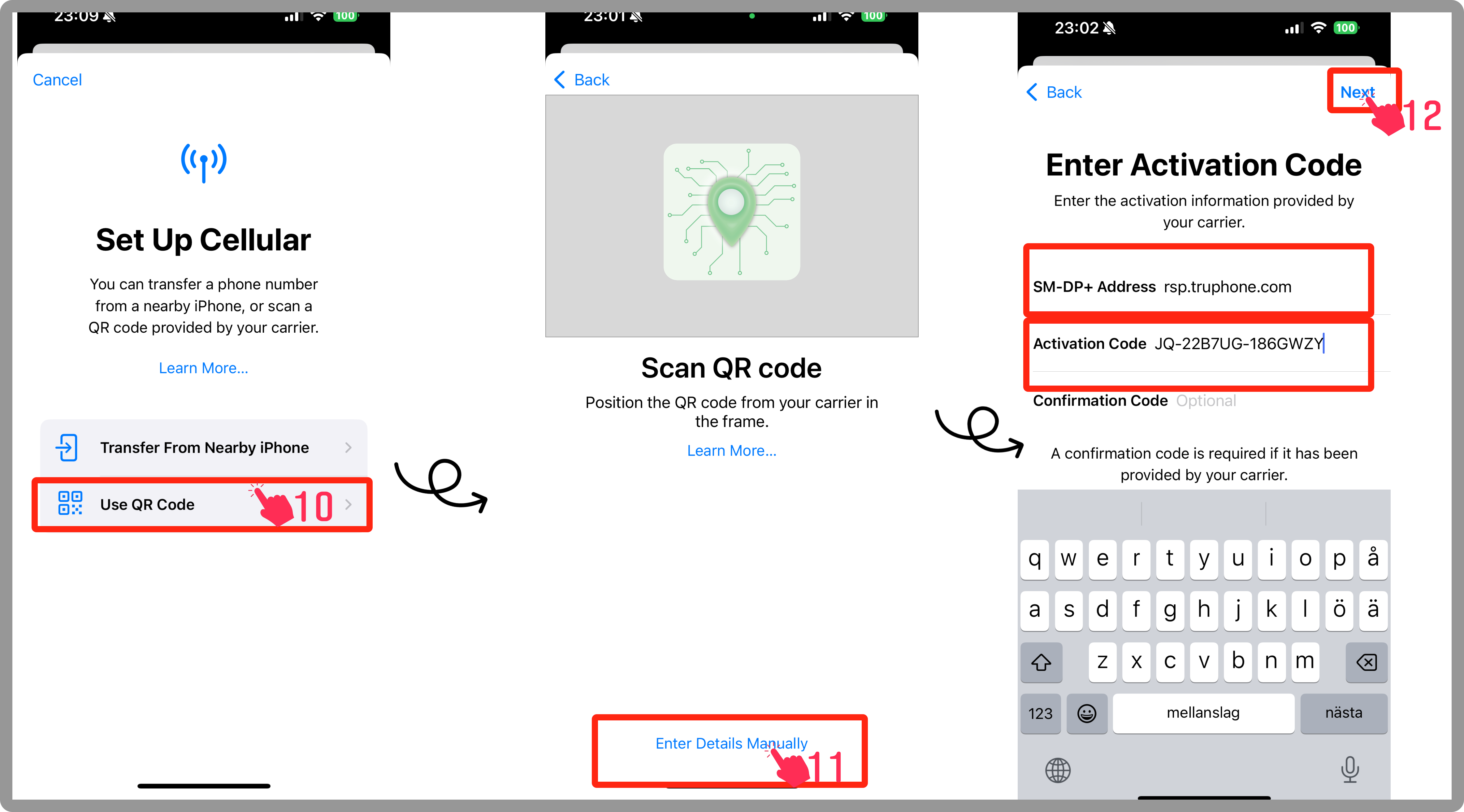
- Tap Use QR Code
- Then tap Enter Details Manually
- Return to the Travola app:
- Copy the SM-DP+ Address and paste it into the corresponding field
- Copy and paste the Activation Code and Confirmation Code (if prompted)
- Tap Next, then Continue twice
- Wait a few moments for the eSIM to activate
- Tap Done
- Set a label for the eSIM (e.g., "Travola" or your preferred name)
- Tap Continue
- Choose your Primary Line for calls and texts
- Select your Primary Line for iMessage & FaceTime
- Choose the newly installed eSIM for Mobile Data
- Make sure Allow Cellular Data Switching is turned off
- Tap Continue to finish setup
- Go to Settings
- Tap Cellular or Mobile Data
- Select your newly installed eSIM
- Ensure Turn On This Line is enabled
- If needed, enable Data Roaming based on your plan's requirements (check the eSIM instructions in the app)
- Go to Cellular/Mobile Data Settings
- Tap Cellular Data and select your eSIM
Which devices are supported by the eSIM service in the app?
Our service is compatible with most modern smartphones and tablets, including the latest models from Apple, Samsung, Google, and other manufacturers. Please refer to our compatibility list in the app for detailed information.
Can I use an eSIM for both data and voice/SMS services?
Our eSIM service primarily focuses on data connectivity.
How do I switch between multiple eSIM profiles?
You can store multiple eSIM profiles within the app. Use the profile switcher in the settings to easily toggle between different data plans based on your needs.
What should I do if I experience connectivity issues or slow internet speeds?
Try the following troubleshooting steps:
- Ensure you have a stable network connection
- Restart your device
- Check the app for any updates or service status notifications
How do I change my APN settings?
To modify your APN settings, go to the app's settings and select "Change APN." Follow the instructions provided to adjust the settings as required by your carrier.
What happens when my eSIM data bundle expires?
When your data bundle is nearing its expiration, you will receive a notification via the app. You can then choose to renew your bundle or purchase a new data plan directly through the app.
How can I prevent my data bundle from starting before I want it to?
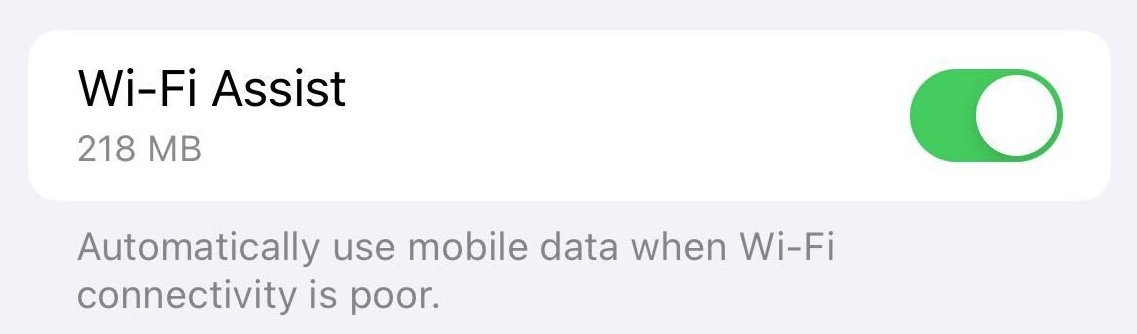
Apple devices may use a small amount of mobile data during the installation process, which can cause an eSIM bundle to activate before it's manually enabled. This is due to a default iOS setting called Wi-Fi Assist, which automatically switches to mobile data when Wi-Fi connectivity is weak.
To prevent this: We recommend turning off Wi-Fi Assist before installing your eSIM. You can find this option at the bottom of the Mobile Service section in your device's Settings.
If you prefer to disable this setting permanently, you can do so by sliding the toggle off in your device settings.